Start with the app store on your own Fire TV. App availability depends on the model, software and region, so check your exact device before buying a player licence. These instructions cover the store-based setup path; they do not require a Downloader code.
Before you start
- Your Fire TV connected to the internet
- The player name recommended in your GOTVMIX setup message
- Your subscription login or playlist link
Find your player
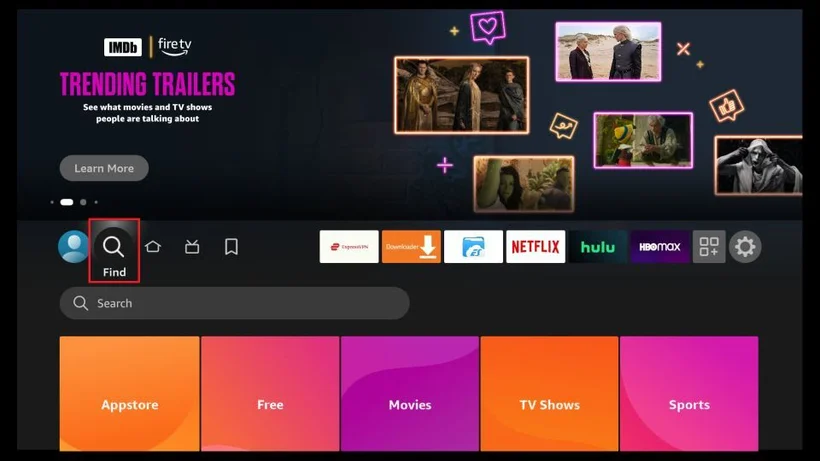
Open Find or Search from the Fire TV home screen and search for the exact player name from your setup message. Check the publisher as well as the name. If it is missing, contact us with your Fire TV model; do not install a similarly named app at random.
Install from the store
Open the player listing and choose Get or Download. When installation finishes, open the app. An app-store installation does not need Developer Options or ADB debugging.
Choose the matching login method
If your message contains a server address, username and password, use the player’s server or Xtream Codes login. If it contains one long playlist link, use M3U instead. Copy the full server address, including any port number.
Load and test
Save the profile and allow the first playlist download to finish. Test more than one channel before changing settings. If playback keeps stopping, close the player on other devices and use our buffering checklist.
Common questions
My Fire TV menus look different. Is that a problem?
Home-screen labels vary between Fire TV models and updates. Use the device search to find the app. Send your model and software version to support if you cannot find the same controls.
Should I turn on Developer Options?
Not for an app installed from the store. If a separate installation method is needed, ask us for instructions for your exact model and the verified publisher download first.
Official reference
Use the manufacturer’s instructions for menus that differ on your model.